
How to Remove or Disable Chrome Extensions

How to uninstall an extension, how to switch one off without deleting it, and what to do when one will not go away.

Remove an extension from the toolbar

  1. Find the extension icon to the right of the address bar. If it is not there, click the puzzle piece icon to see all your extensions.
  2. Right click the icon.
  3. Choose Remove from Chrome, then confirm with Remove.

Remove an extension from the extensions page

  1. Click the three dots at the top right of Chrome.
  2. Choose Extensions, then Manage Extensions. You can also type chrome://extensions in the address bar.
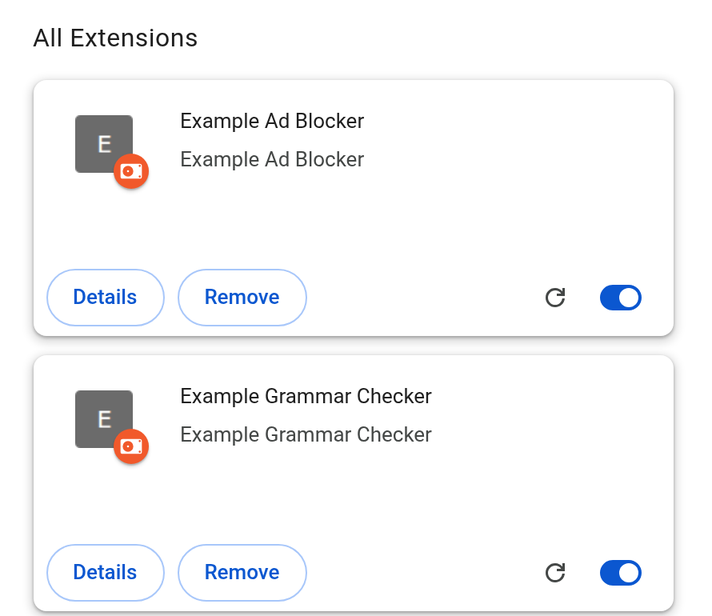
  3. Find the extension and click Remove.
  4. Confirm with Remove.
The Chrome extensions page: each extension has a Details button, a Remove button and an on and off switch
The extensions page in Chrome. Each extension has Details, Remove and an on and off switch.

Disable an extension without removing it

On the same extensions page, each extension has a switch at the bottom right of its card. Turn it off and the extension stops running but stays installed, with its settings kept. Turn it on again whenever you need it.

This is the quickest way to find out whether an extension is causing a problem: switch extensions off one at a time and see when the problem stops.

When an extension cannot be removed

  • There is no Remove button. If the card says the extension was installed by your administrator, your school or employer added it through a policy. Only they can remove it.
  • It comes back after you remove it. Another program on the computer is putting it back. Remove the extension, then look through your installed programs for anything you do not recognise and run a scan with your security software.
  • Chrome switched it off for you. Chrome disables extensions that were taken out of the Chrome Web Store for malware or policy violations, and lists them under Safety Check in Chrome settings. Remove those.

Should you remove it?

An extension that was safe when you installed it can change hands or gain new permissions later. Our extension checker takes the list of extensions you have installed and shows which ones were removed from the store, changed publisher or asked for more access.

You can also browse extensions removed from the Chrome Web Store and recent publisher and permission changes.

Related

More guides