Chrome shows what the extension will be able to access. Read it, then click Add extension.
You cannot add extensions in an Incognito window or while browsing as a guest. Extensions also cannot be installed in Chrome on a phone; see Chrome extensions on Android and iPhone.
Before you install
Anyone can publish an extension, so a minute of checking is worth it. Look the extension up on this site and check:
Users and ratings. A large number of users and a steady flow of new ratings are good signs. A sudden surge of ratings is not.
Permissions. Access to all websites lets an extension read everything you do in the browser. Make sure that fits what it claims to do.
Changes. A new publisher or new permissions after years of quiet deserve a second look.
Every extension page here shows these, and the Best lists rank extensions by users for each topic.
Find the extensions you have
Click the puzzle piece icon to the right of the address bar for a quick list.
For the full page, click the three dots at the top right, then Extensions, then Manage Extensions.
Or type chrome://extensions in the address bar and press Enter.
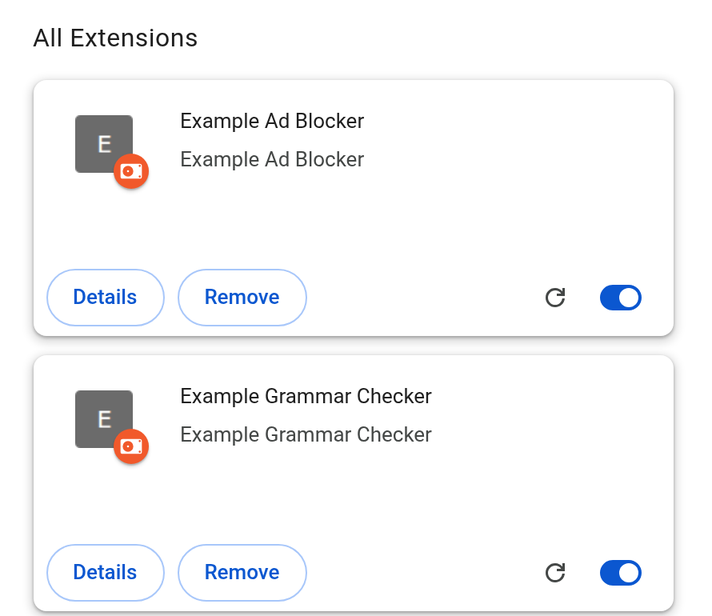
The extensions page in Chrome. Each extension has Details, Remove and an on and off switch.
Pin an extension to the toolbar
Click the puzzle piece icon, then the pin next to the extension. Its icon stays visible next to the address bar. To hide it again, right click the icon and choose Unpin.
Settings worth knowing
On the extensions page, click Details on any extension:
Site access. Shows which websites the extension can read and change. For many extensions you can limit this to when you click the extension or to specific sites.
Allow in Incognito. Extensions are off in Incognito windows unless you turn this on. Chrome warns that it cannot stop an extension from recording your browsing there.
Permissions. Lists everything the extension is allowed to do.
Updates
Chrome updates extensions by itself in the background. If an update needs new permissions, Chrome switches the extension off and asks you to approve them first. That prompt is worth reading and not just accepting.